MPower365 DocumentHub is a library-centric document management app that works inside SharePoint. Everything is in one place — setup, libraries, documents, and administration.
Four steps take DocumentHub from the Microsoft Marketplace to a working SharePoint site.
01
Install from Microsoft Marketplace
MPower365 DocumentHub is available through the Microsoft Marketplace. Search for MPower365 DocumentHub and select Get it now to start the installation. Follow the Marketplace installation flow to add DocumentHub to your Microsoft 365 environment. Once the app is installed, it can be added to any SharePoint page in your site.
02
Complete the licensing subscription
After installing MPower365 DocumentHub, you must complete the licensing subscription before using the application. Follow the licensing and subscription steps presented during the initial setup to activate DocumentHub for your organization.
03
Create a dedicated site collection
For the best experience and easier administration, create a separate SharePoint site collection for MPower365 DocumentHub. A dedicated site collection keeps DocumentHub’s document libraries, configuration, permissions and application data isolated from other SharePoint sites and applications. After creating the site collection, add MPower365 DocumentHub to a SharePoint page within that site.
04
Run Setup
The first time you open DocumentHub on a new site, it launches the Setup wizard. Setup prepares everything the app needs to run — document libraries, metadata fields, categories, statuses and numbering — so the site is ready to use as soon as it finishes. If a step cannot be completed because of insufficient permissions, Setup stops and tells you exactly what went wrong before making any further changes.
Important
Make sure the licensing subscription is completed successfully before proceeding with the application setup.
Part 2
Working with DocumentHub
Once Setup has finished, everything below is reachable from the app’s left-hand navigation. Libraries hold the documents; Settings holds the rules that shape them.
01 — Libraries
Create a library
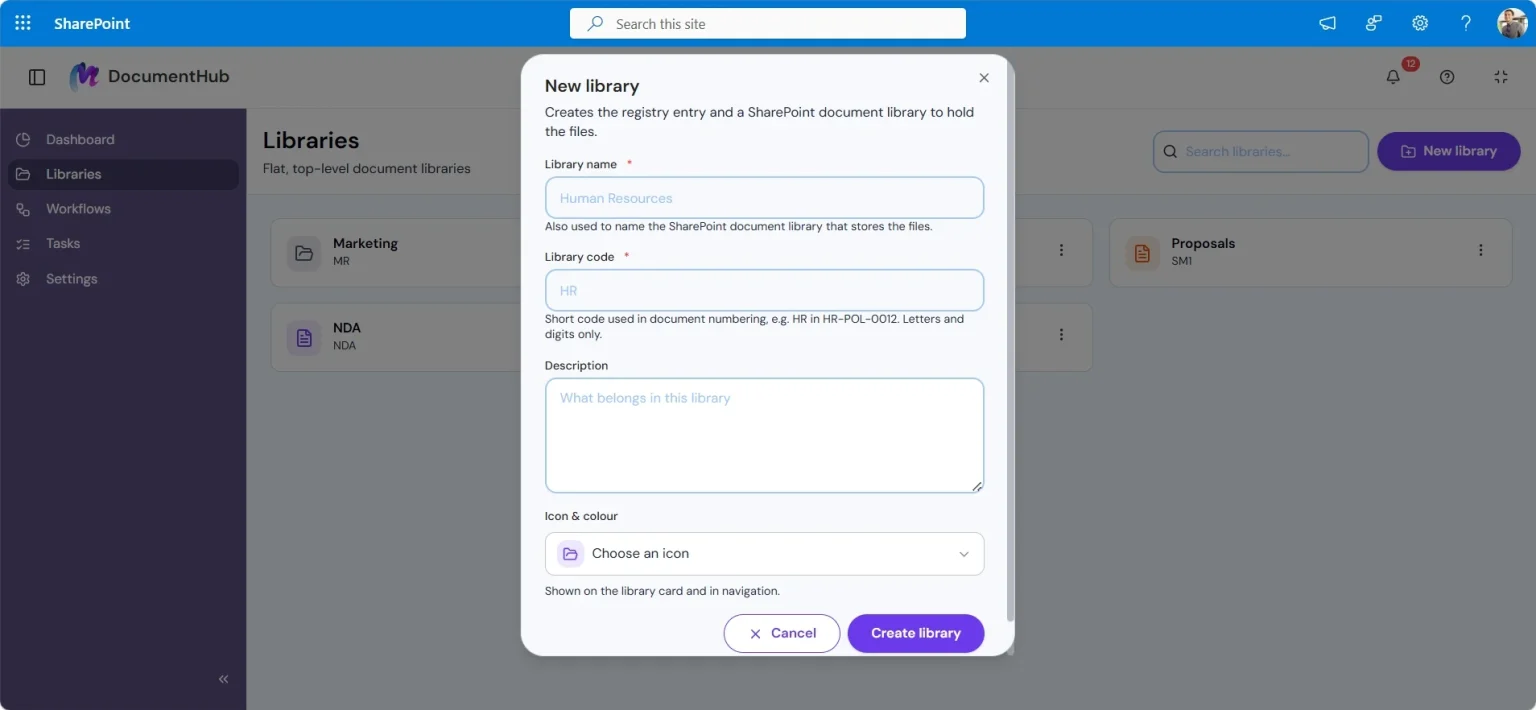
Libraries sit at the top level of DocumentHub, so documents are always easy to locate. Go to Libraries → New Library, give the library a name, and it is ready to receive documents straight away.
Libraries → New Library. Name the library, give it a short code used in document numbering, and pick an icon.
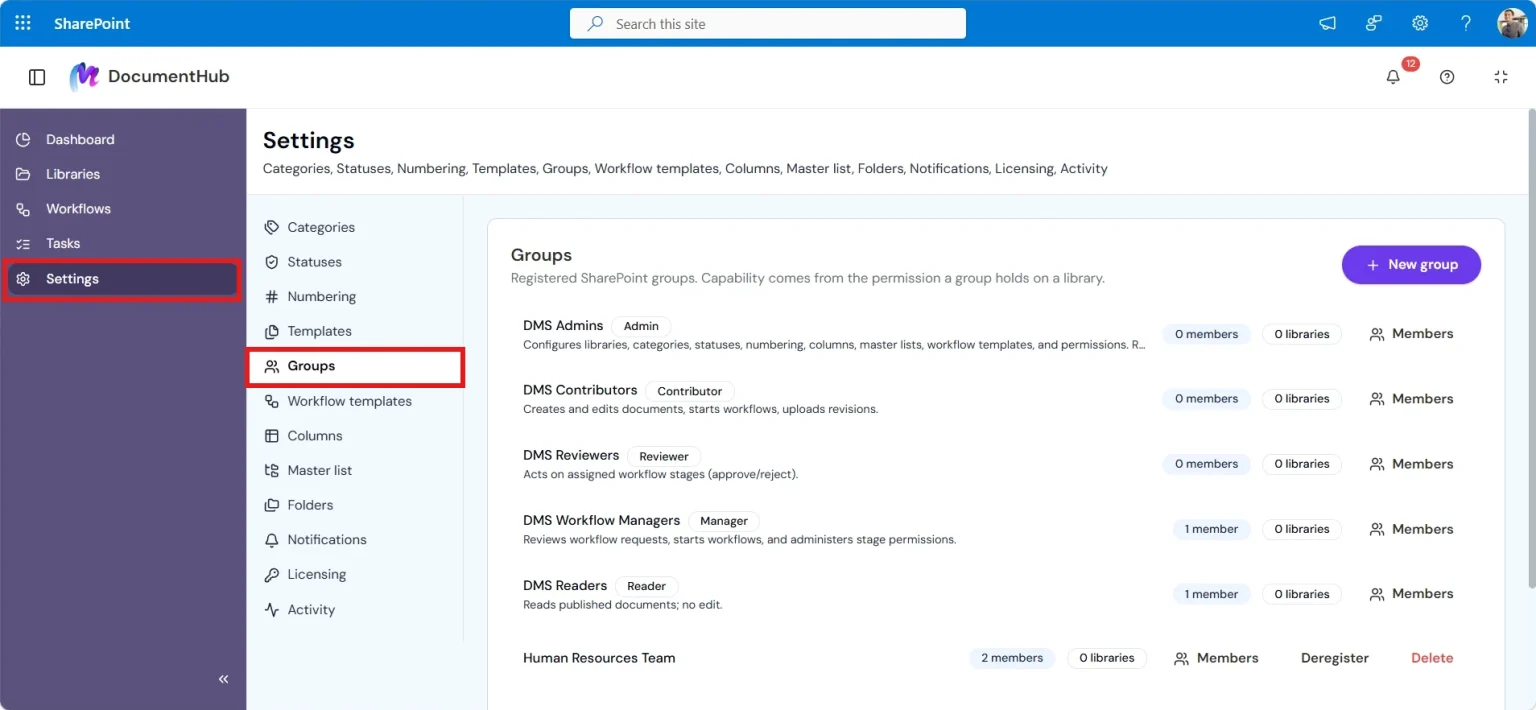
Each library gets its own permission model, managed through groups (Settings → Groups), so access stays simple to control as the number of libraries grows.
Settings → Groups. Registered SharePoint groups, and the capability each one holds on a library.
02 — Documents
Upload and number documents
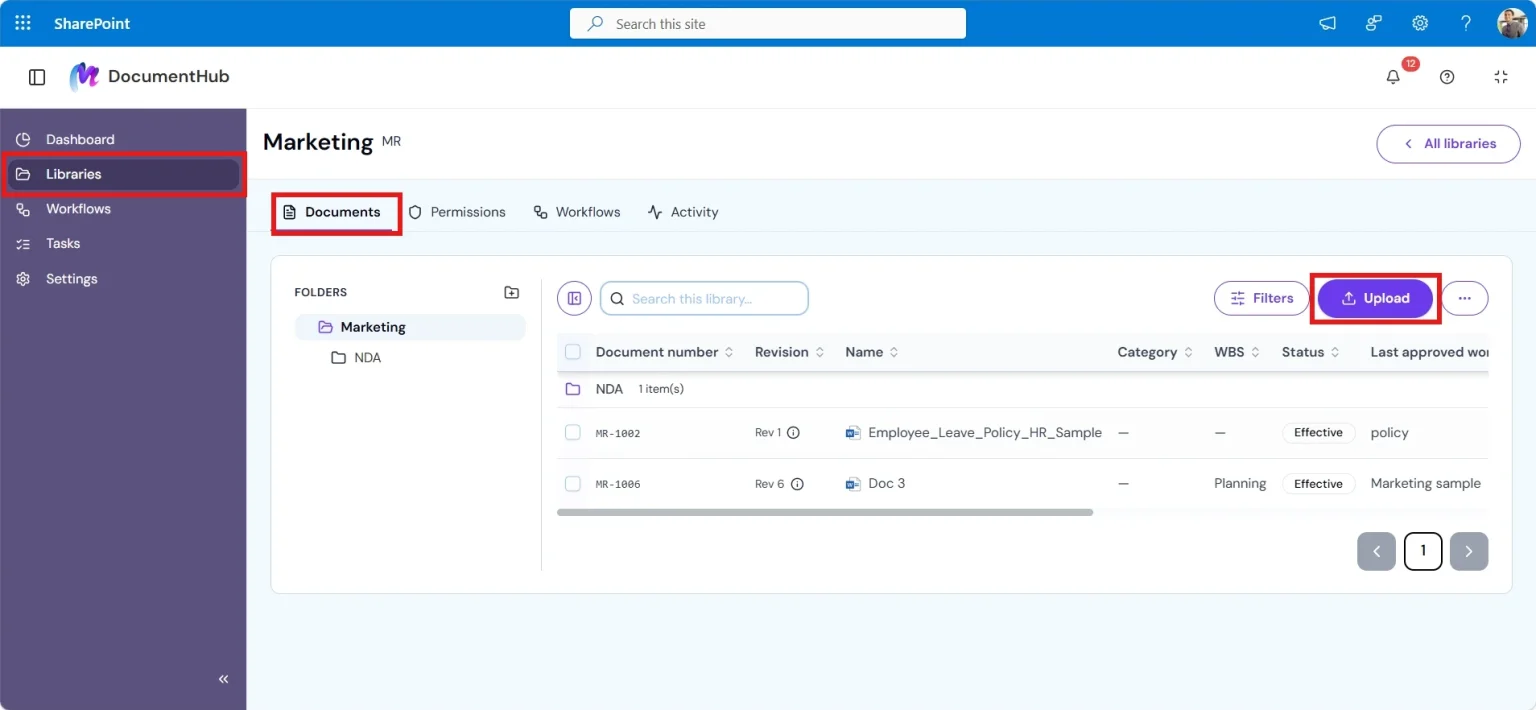
Open a library and use Upload. Details such as title, category and status are stored with the document itself, so the information you see is always current.
The Documents tab of a library, with Upload highlighted.
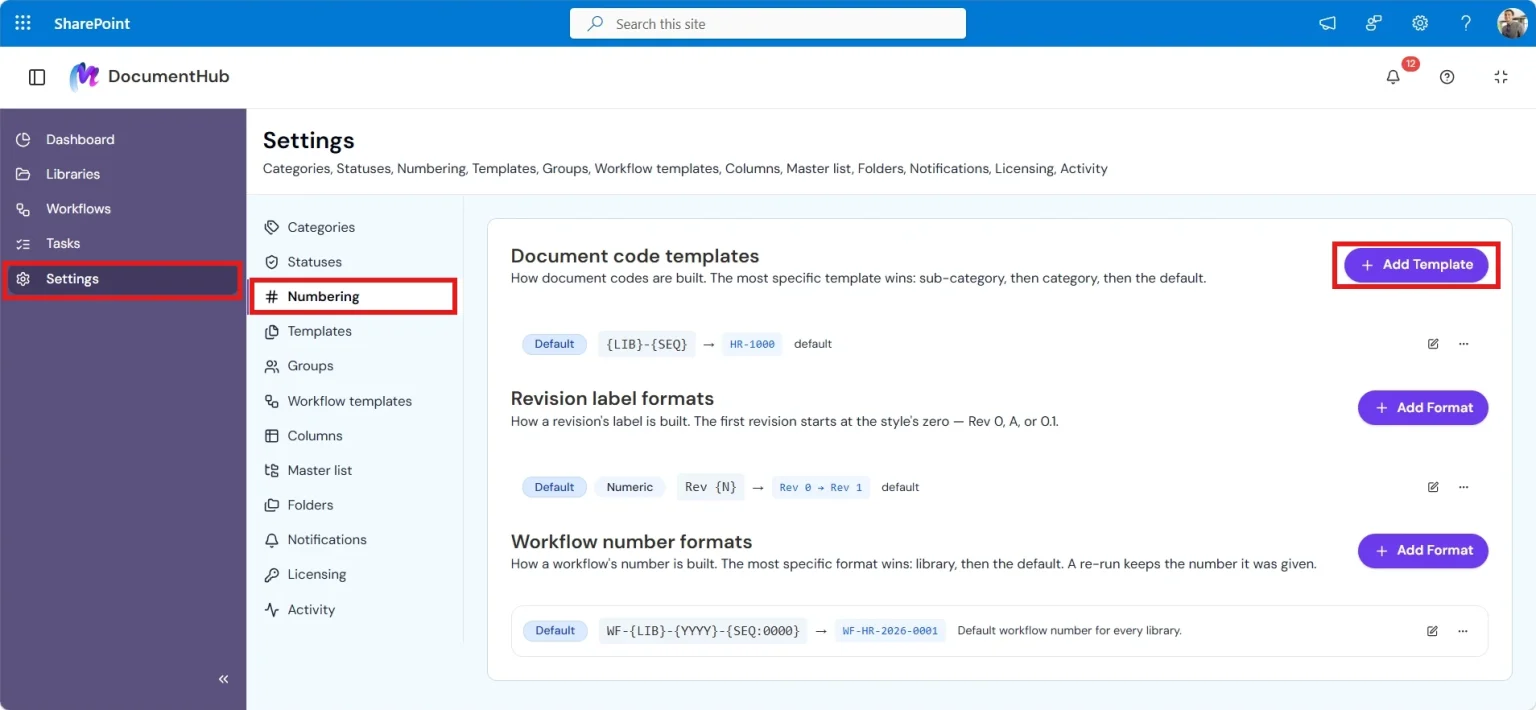
If the library has a numbering template configured (Settings → Numbering), every new document gets a generated document ID and revision label automatically — no manual numbering.
Settings → Numbering. Document code templates, revision label formats and workflow number formats.
03 — Classification
Categorize and track status
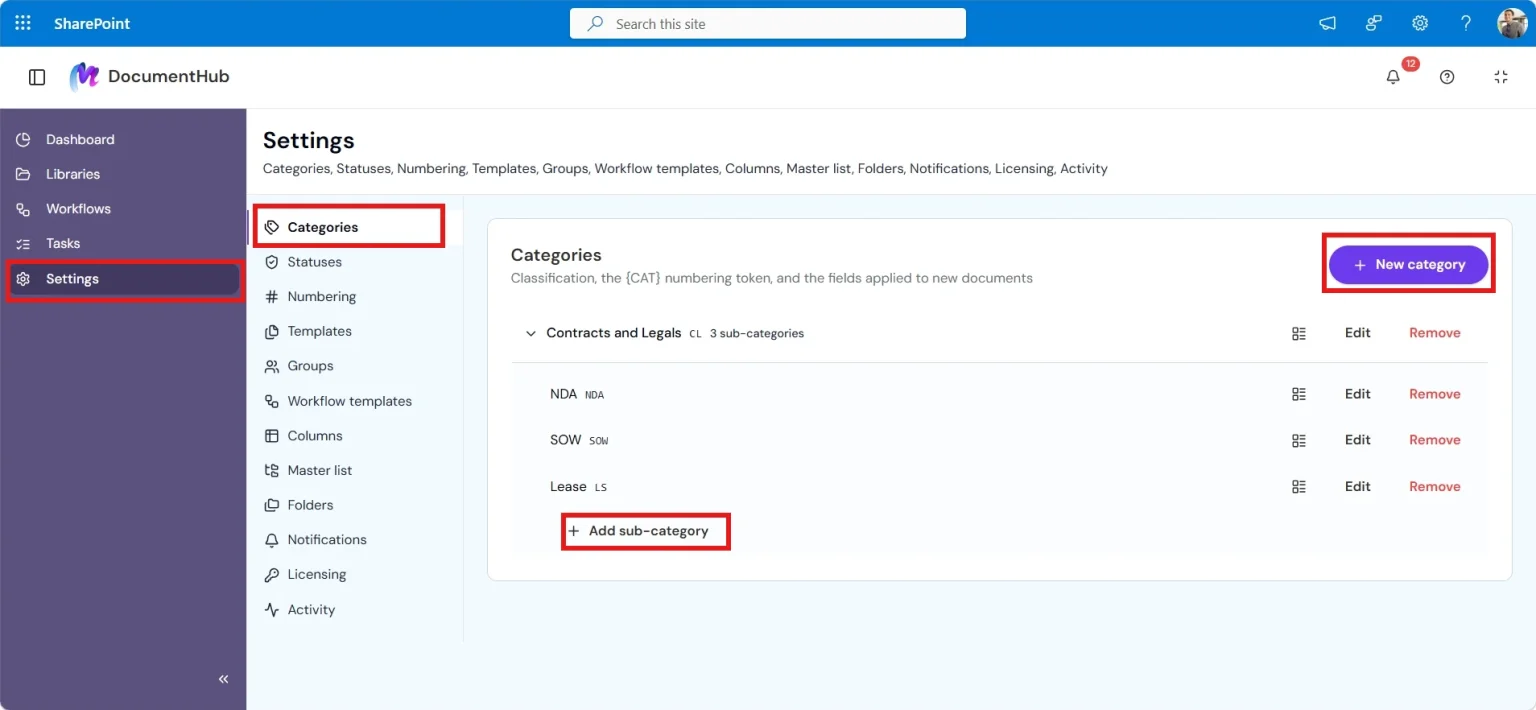
Documents can carry a category and sub-category (Settings → Categories), which can bring along a template of expected fields and tasks.
Settings → Categories. Classification, the {CAT} numbering token, and the fields applied to new documents.
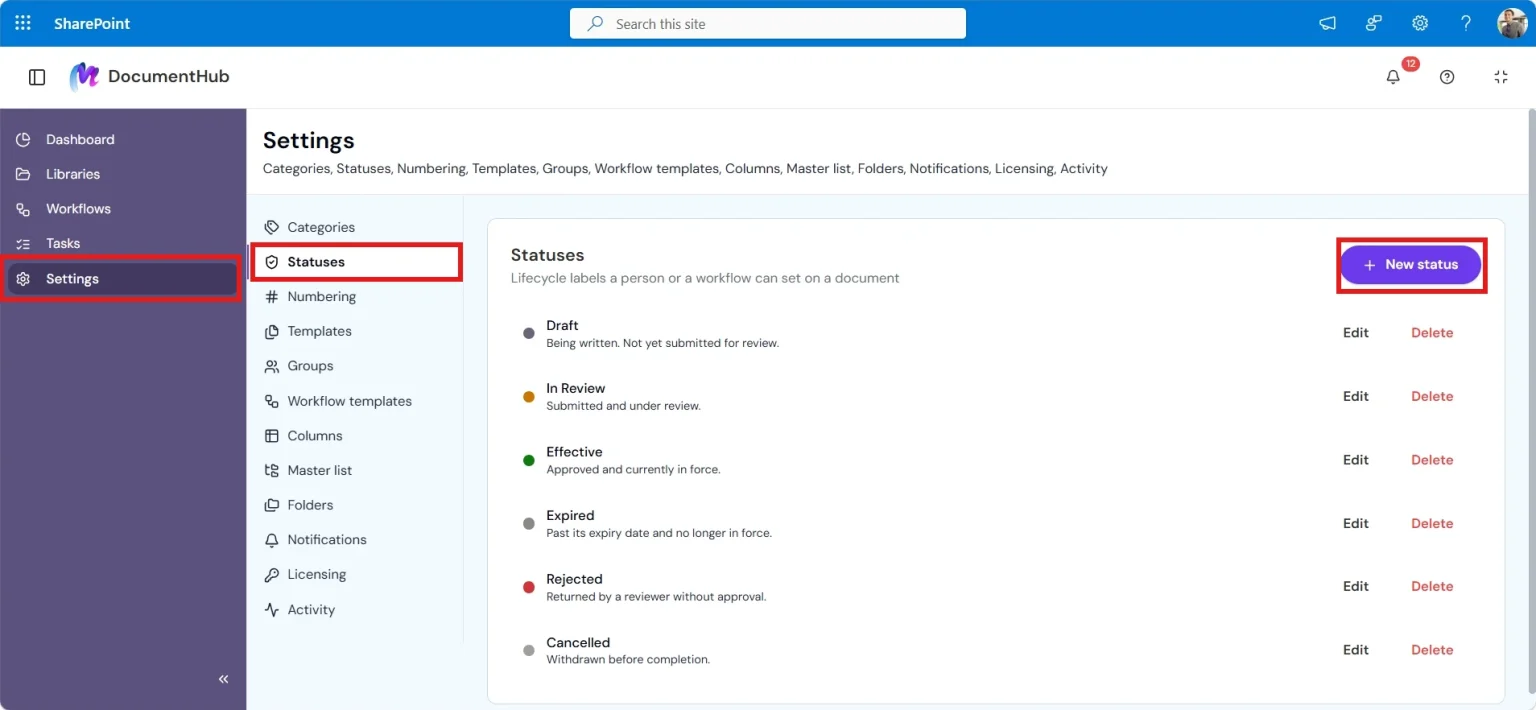
A status (Settings → Statuses) tracks each document’s lifecycle stage — Draft, In Review, Approved and so on — fully configurable per site.
Settings → Statuses. Lifecycle labels that a person or a workflow can set on a document.
04 — Structure
Organize with folders
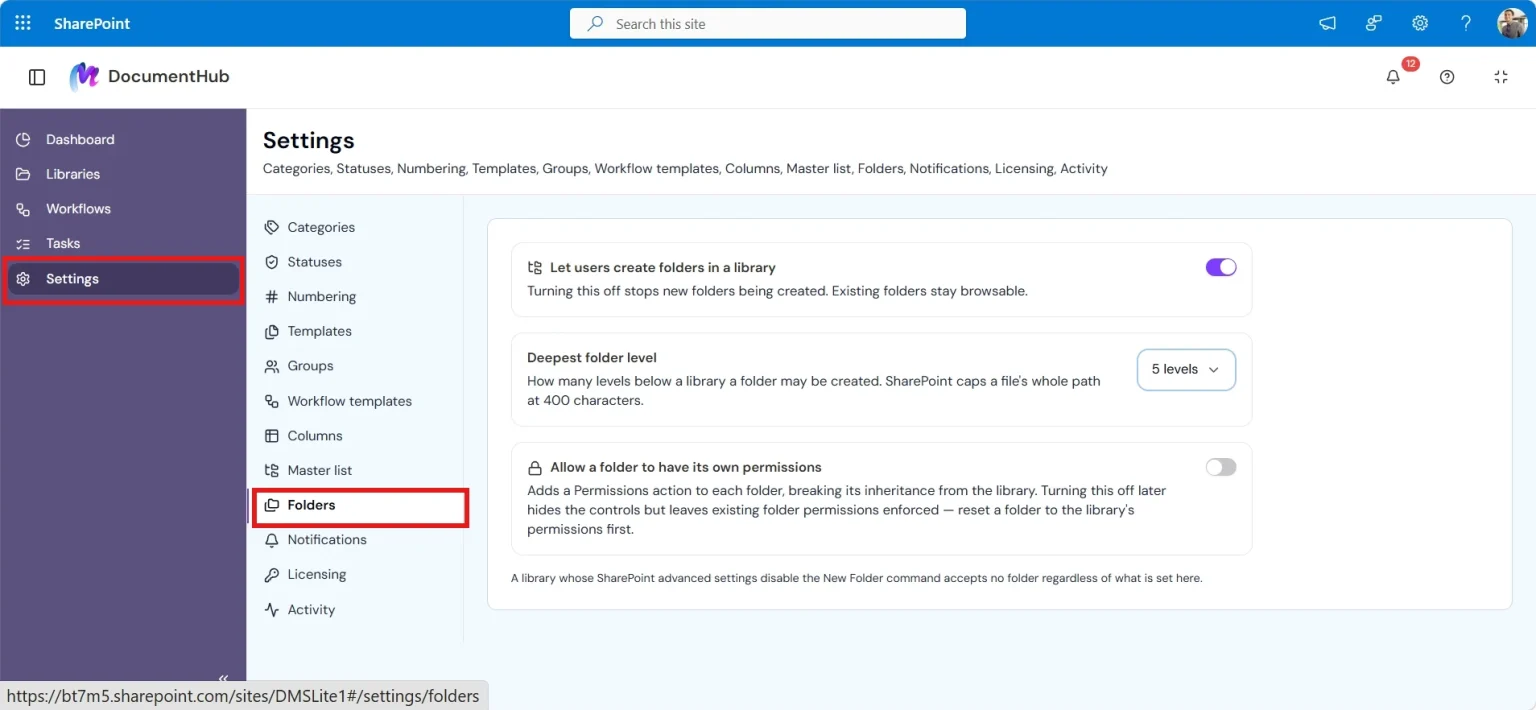
Folders are optional. Under Settings → Folders you can turn folders on or off, limit how many levels deep they can go, and control folder permissions. Folders behave exactly like familiar SharePoint folders, so no extra training is needed.
Settings → Folders. Folder creation, maximum depth, and folder-level permissions.
05 — Finding things
Search and the dashboard
Dashboard
An at-a-glance view of libraries, recent documents and pending items, refreshed each time you open the app.
Search
Finds documents by their details, category and status across every library you have access to.
06 — Version control
Revisions and publishing
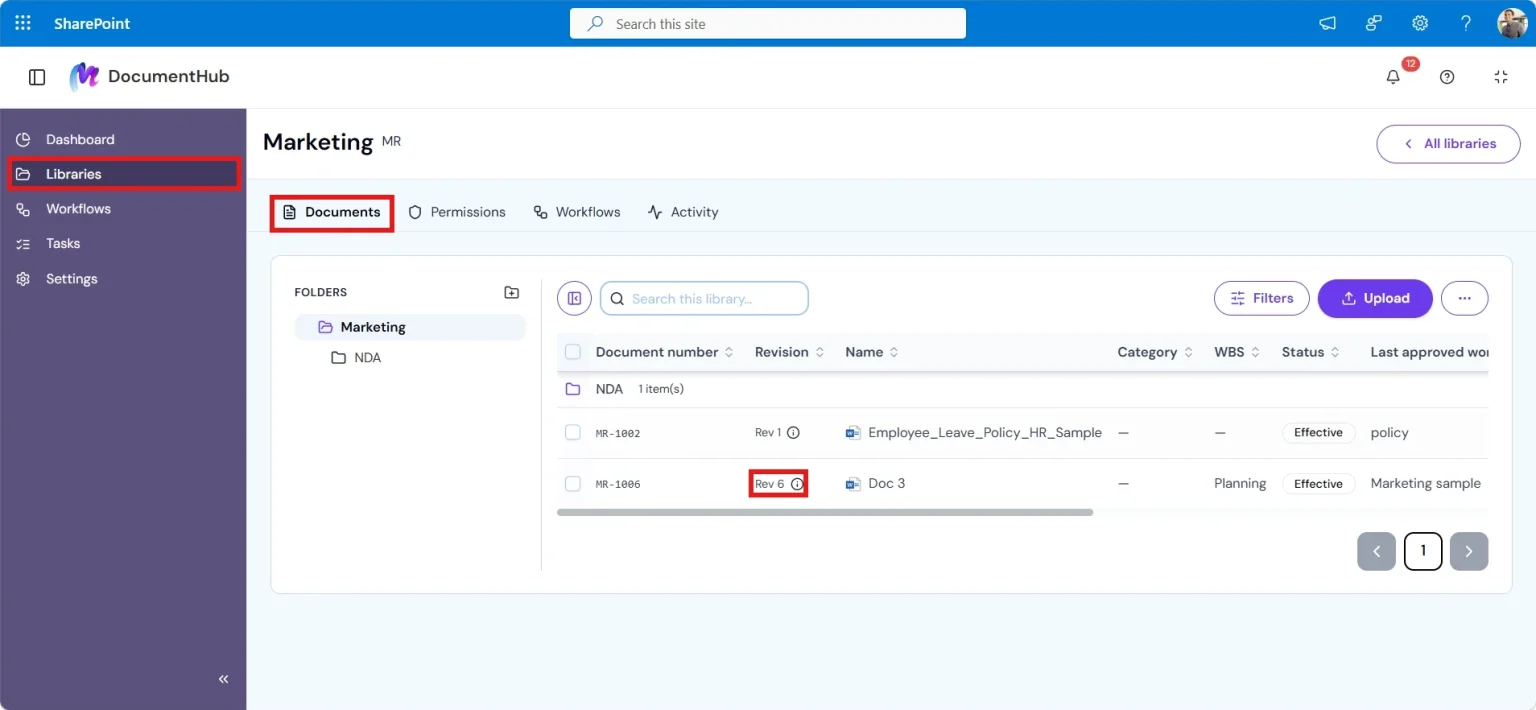
Every document keeps a full revision history, so you can see what changed and when without leaving the library.
The current revision label shown against a document in the library list.
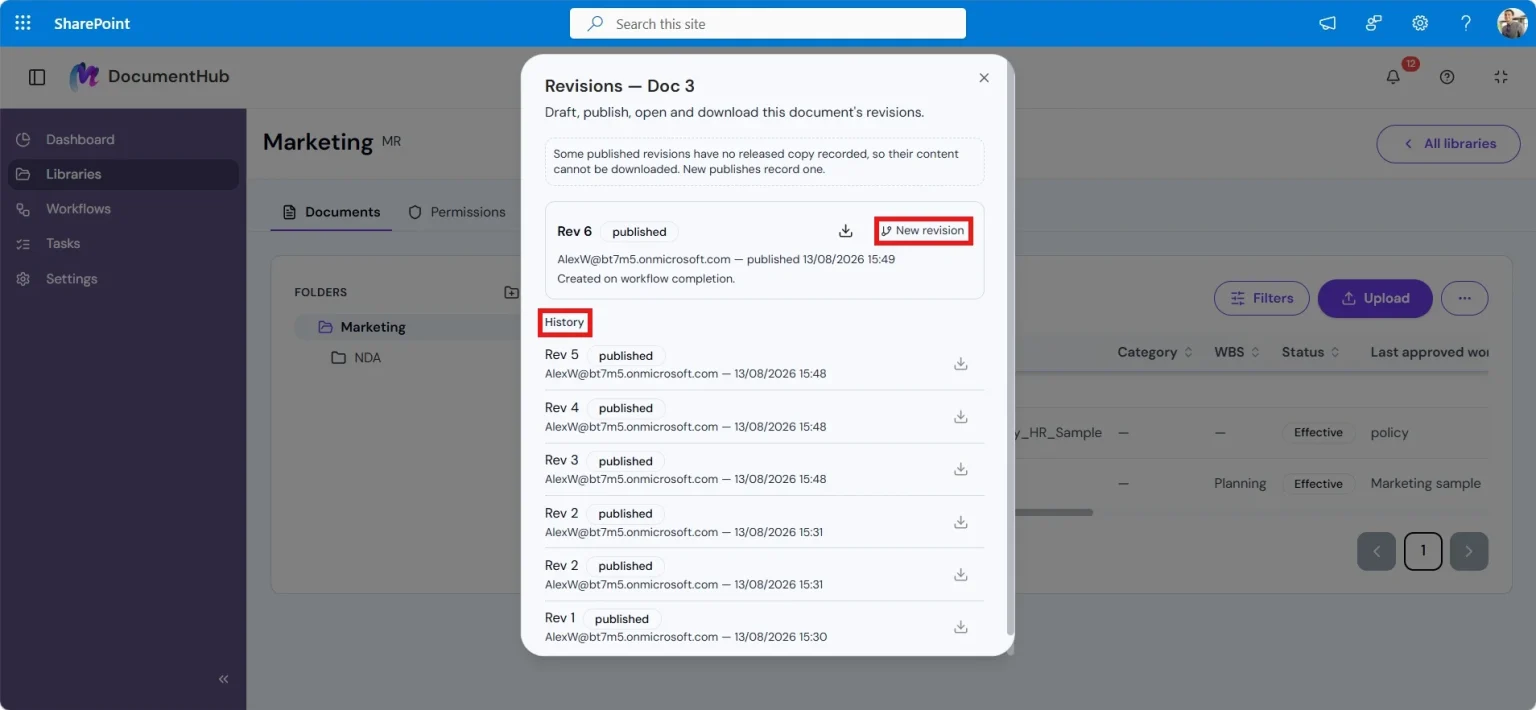
Publish promotes a revision to the version people see by default; older revisions stay available from the document history panel.
The revisions panel. Publish, start a new revision, and download any revision from the history.
07 — Process
Workflows
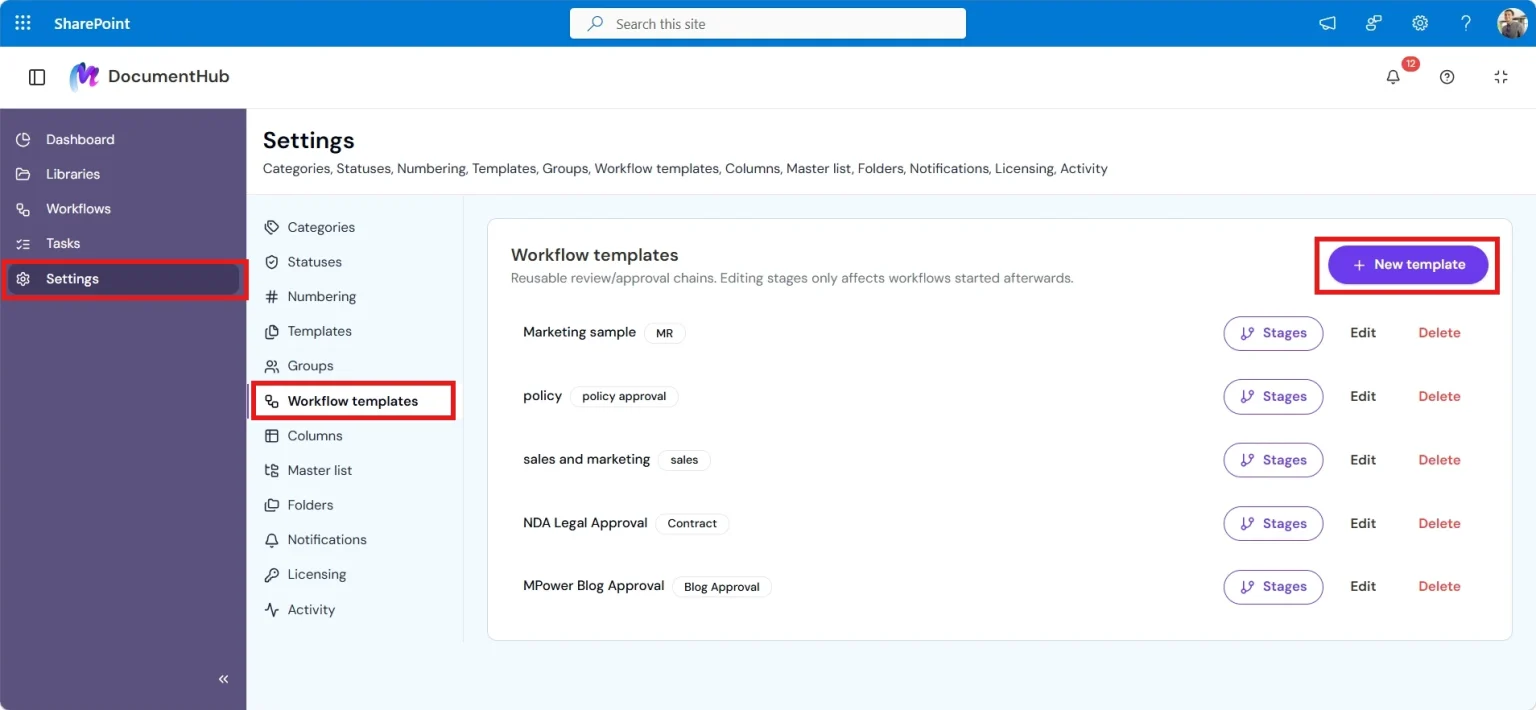
Workflows route a document through a sequence of stages — review, approval, sign-off, whatever your process needs — defined once as a workflow template (Settings → Workflow Templates) and reused across documents.
Settings → Workflow templates. Reusable review and approval chains.
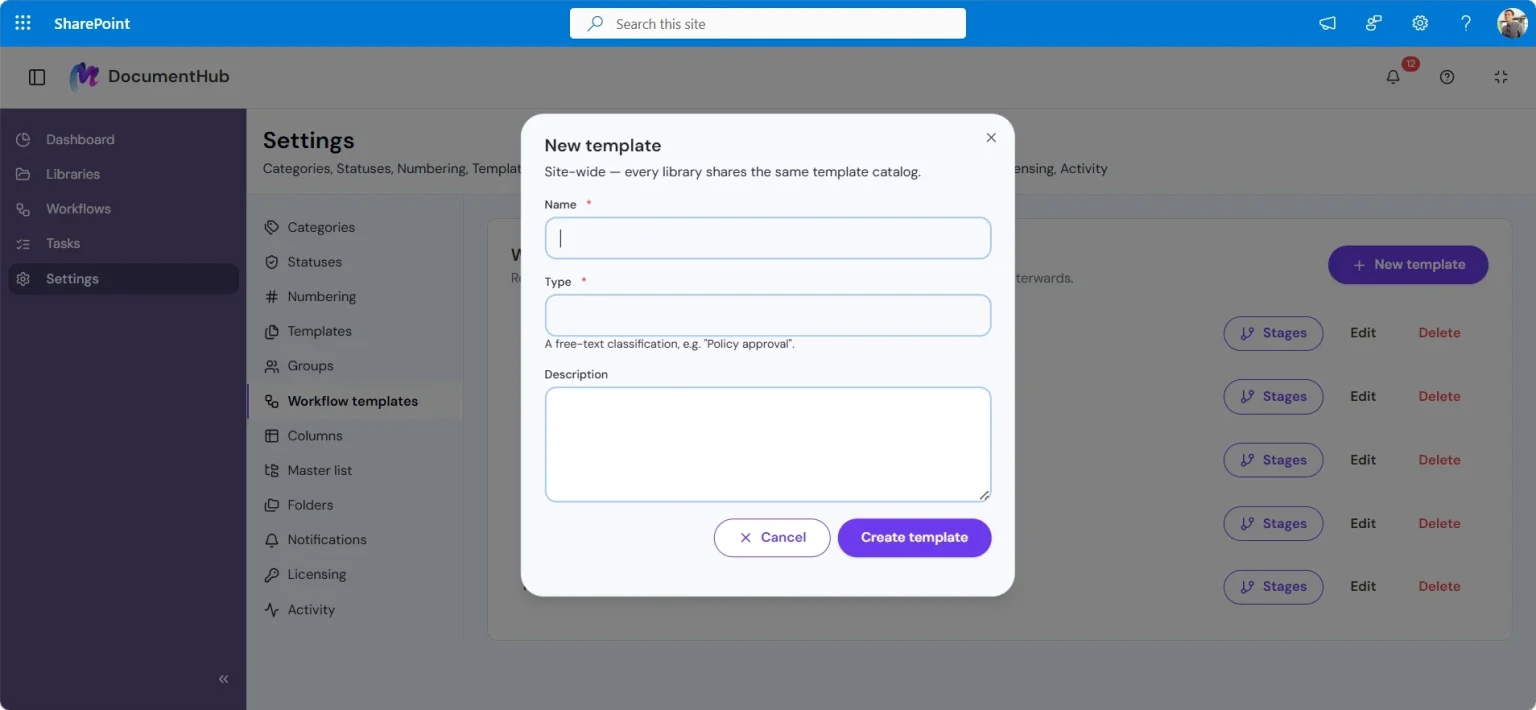
Creating a workflow template. Templates are site-wide, so every library shares the same catalogue.
Starting a workflow on a document tracks its progress through each stage, along with the documents attached to it. Each stage can carry tasks — assigned to people, with due dates and a comment thread — and moving a document to its next stage is one click from the workflow view.
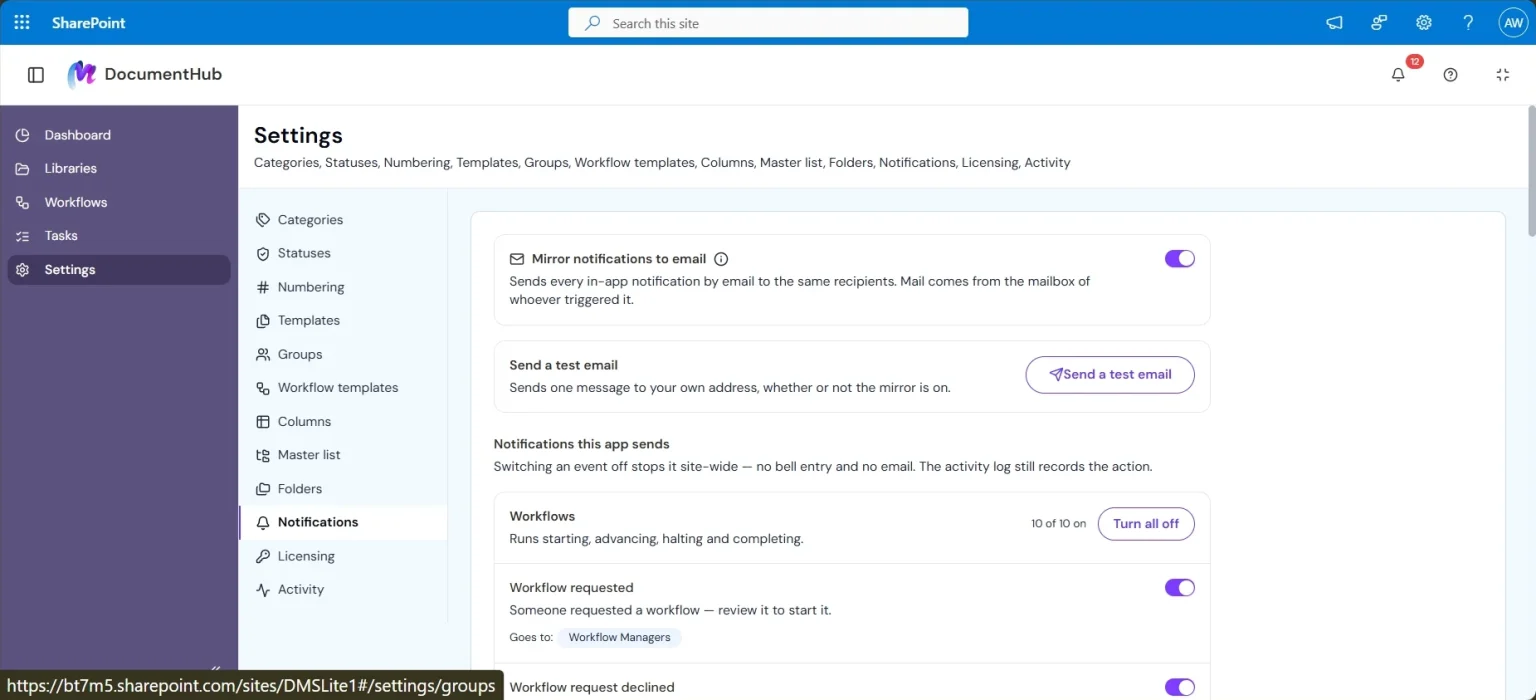
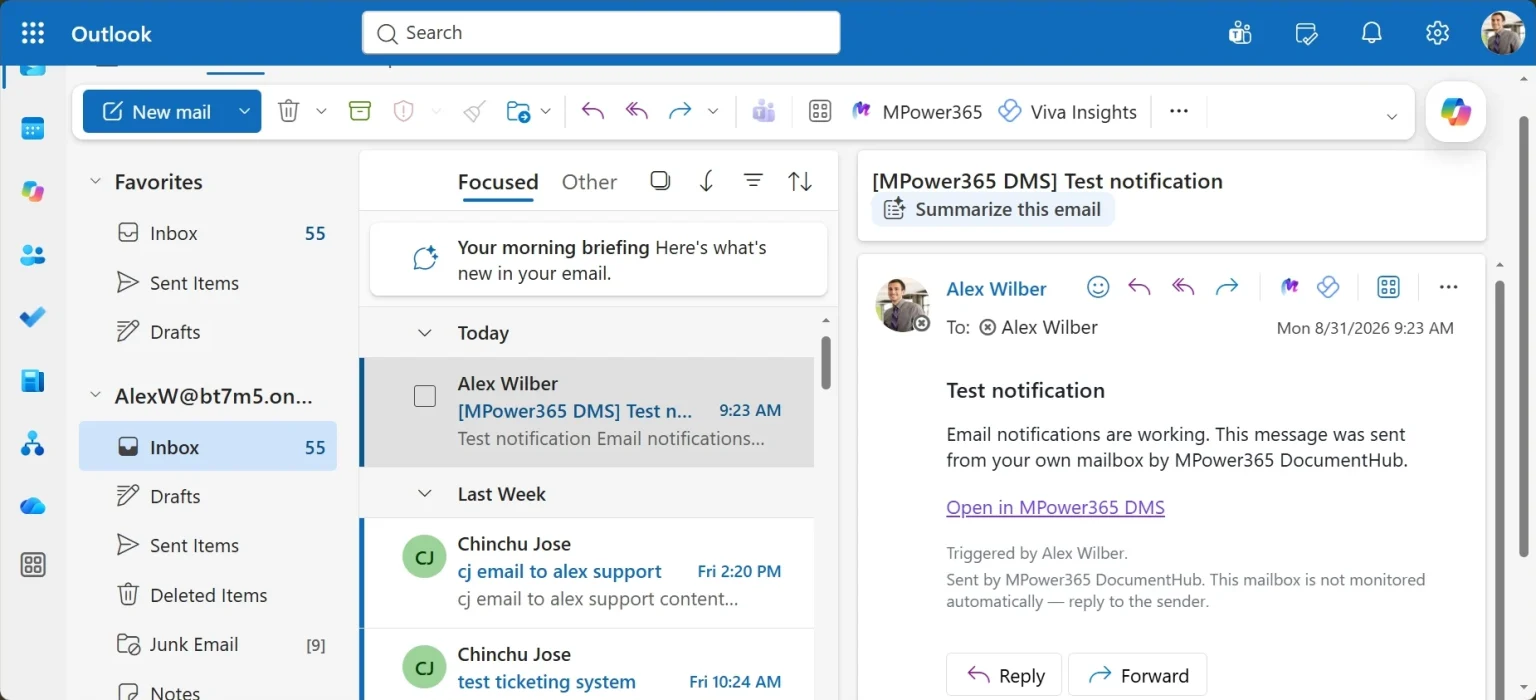
Everyone with a task or a stake in the outcome gets an in-app notification when something needs their attention. If email notifications are turned on (Settings → Notifications), the same notification is mirrored to their inbox. Due dates and overdue items are checked whenever the app is opened, so the next person to open DocumentHub sees anything that needs attention.
Settings → Notifications. Mirror in-app notifications to email, and choose which events are sent.
A DocumentHub notification delivered to Outlook.
Support
Need more information or support?
For additional information, assistance or technical support, visit the MPower365 support portal.
Once your MPower365 DocumentHub subscription is active, you will have access to the support system. Sign in to the support portal using the email address associated with your registered Microsoft 365 tenant — this ensures support access is available to authorized users from your organization.